 As usual, The Book Designer provides important information for those of us learning to market our books. Here, Amy Collins, book distributor and marketer, clears up those pesky Amazon rules on book reviews. I haven’t seen this information laid out more clearly than this.
Category Archives: Self-publishing
Useful Info on Amazon Review Rules
How Can You Tell Legitimate Publishers from the Bad Guys? – by Anne R. Allen…
Via Chris the Story Reading Ape, one of the most comprehensive guides to publishing options I’ve yet seen. I learned a lot. With a new manuscript almost ready to go that won’t fit into a lot of traditional niches, I am hungry for this kind of guidance and thought you might be, too.


New writers have much to be wary of these days. New publishing scams are landing in writers’ inboxes faster than we can send out warnings.
Probably the most dangerous predators for the newbie writer are phony publishers, because they can shatter dreams as well as drain bank accounts.
Continue reading HERE
20 Tips to Proofread Like A Professional
A great list that gives you a process for proofreading—and I can attest that these steps work for me. I especially want to echo Dave’s advice to read in hard copy. Not only will you spot errors you miss on screen (track changes be darned), you will see your work in a different light. Something changes in your head when you hold a sheet of paper and a pen in your hand. I can’t explain this, but I know it’s true for me.
When you’re done with this process, run your manuscript through my “Things You WILL Miss When You Proofread” posts. They’ll help you catch those little things your eyes will still miss but your computer won’t.

 Proofreading. Some writers love it, some writers despise it. But whatever your feelings, proofreading is your final task when preparing to share your words with the world.
Writers often read their words the way they believe they wrote them, not how they actually wrote them. This means spelling mistakes, typos and grammatical errors, such as poor sentence structure, wrong choice of words and punctuation can all go unnoticed by the writer. These factors impact the context and readability of the work.
The good news is that proofreading skills can be learned, developed and improved. Where is the best source for information on learning how to proofread, I hear you ask (at least I hope you are).
Fear not my friends, help is at hand and The Haunted Pen is here to save the day!
The best source for hands-on information is a professional proofreader – someone who has spent years…
View original post 1,522 more words
BELIEVE! Do Not Pay Someone to Publish Your Book! ALLI Agrees.

Dreams of publication? Yes!
Here’s support from ALLI, the Alliance of Independent Authors, for my claim that you SHOULD NEVER PAY SOMEONE TO PUBLISH YOUR BOOK. Yes, there are some reputable book packagers out there who will charge you for various services, but the chances that you will make back what they charge you are slim. YOU CAN DO THIS YOURSELF. This ALLI article explains why it is so easy to fall for vanity scams. Here’s an important quote:
Many vanity presses will try to persuade authors that they are incapable of producing a professional book without an expensive full-service publishing package. This is particularly effective on authors who may not be comfortable with new technology; the idea of handing off the details of publishing to someone who will take care of it for you is alluring.
Do not be fooled. You can start your book off with a very modest investment if you apply very basic skills to get it formatted and posted. Spend your money on a cover and an ISBN, not on thousands of dollars for “publication” you’ll never get back.
Maybe you’ll notice that I’m very passionate about this. I just hate scams.
Can Social Media Ban Your Content? Apparently, Yes.

Caution: Content Police!
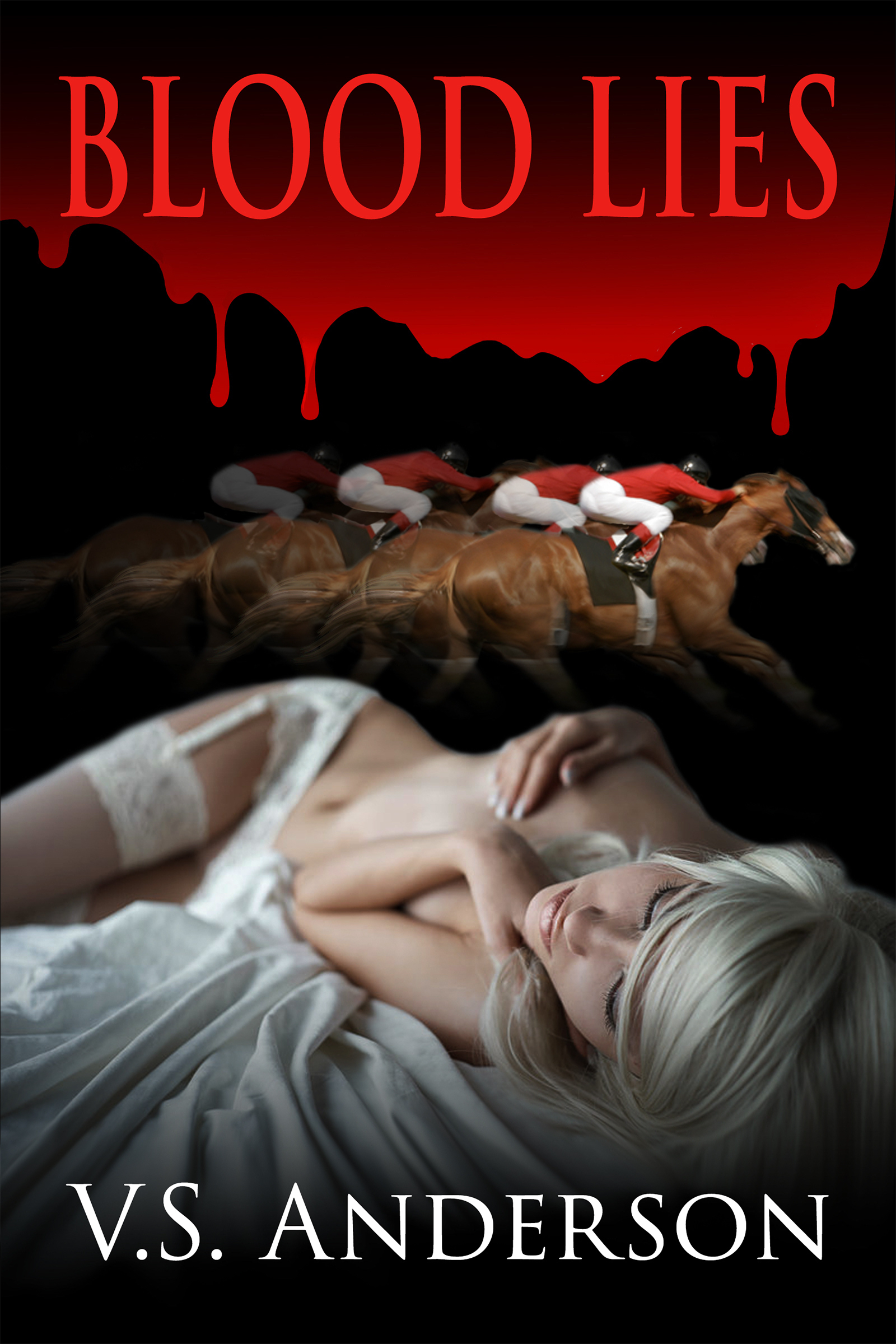
Here are some thoughts from the ever-informative Derek Haines at Just Publishing Advice covering an issue many of us may not have considered seriously: the possibility that social media might refuse to feature our advertising or even allow us to post our content because it violates their “Terms and Conditions.” While I haven’t worried about this very much so far, I do know that my book Blood Lies wouldn’t be accepted for an Amazon ad with the current cover.
What about you? Do you always read the Terms and Conditions? Have you experienced any resistance from social media or other advertising sites when posting information about your books?
SHARE YOUR EXPERIENCES!
Earn a Salary by Writing Novels? Not So Fast.
 Victoria Strauss of Writer Beware assesses a start-up, “De Montfort Literature,” that promises to hire writers for $24,000 a year plus royalties just to write novels. Strauss and John Doppler from the Alliance of Independent Authors find that there’s a lot less to DML than meets the eye. If you’ve encountered this kind of proposition and it intrigues you, READ THIS CAREFULLY.
For my own part, I take exception to De Montfort’s claim in an interview with The Guardian that in contrast to his arrangement, “self-publishing is costly and time-consuming.” Not so. Anybody with the time and self-discipline to write a novel will find plenty of excellent how-tos that make it possible to publish online in a matter of an hour or so. My book, You CAN Format Your Print-on-Demand Book! is just one of many that make publishing your own paperback the work of just a few days.
Authors have never had so many options and so much freedom. Don’t sell yourself short!
Now That CreateSpace is Being Absorbed: Try Ingram, Too.

Publishing journeys into the unknown?
Now that you’re looking at new options in light of Amazon’s demolition of CreateSpace in favor of KDP Print, here’s help adding Ingram to your mix of choices, from Melinda Clayton at Indies Unlimited. In my how-to book, You CAN Format Your Print-on-Demand Book!, I explain why you SHOULD publish at Ingram as well as at Amazon and show you how to format using InDesign, which Ingram supports. Be sure not to opt for the free ISBN at Amazon. Buy one from Bowker.com that you can take with you anywhere!
THE THINGS YOU MISS WHEN YOU PROOFREAD, PART 3: Creative Finds and Fixes
Part 3: Proofreading Slips You Can Find and Fix with Creative Tricks
Fact: You will miss things when you proofread your manuscript. Your eyes see what they expect to see.
Fact: A little creative use of Find/Replace, in Word or your preferred program, can find these hard-to-spot slips for you—and fix them with a keystroke.
I’ve split this post into three subposts, so you can use what you need when and if you need it:
- Part 1: The Secrets of Find/Replace
- Part 2: Easy fixes you can do in minutes
- Part 3: Fixes that take a little more effort but are still faster than reading the whole darn book for the 1000th time. (You are here.)
These posts are based on Word, but most of the notations are universal. You should be able to apply them in any program you use.
These hard-to-see slips take a little more creativity to find and address than those in Part 2, but most of these searches will return “Not Found,” so you just move on to the next.
In each case below, I will
- List the problem,
- Show you what to type in the Find bar in the Find dialogue box
- Show you when to eyeball if context is important
- Show you what to type in the Replace bar
- Tell you when to click “Replace all” or when to click Replace
In some cases below, I tell you that you can click “Replace all” after eyeballing to check that you’re finding the right combination. However, I generally eyeball each instance (there won’t be that many) and click “Replace.”
Do NOT type “+” in the Find or Replace bars unless you are actually searching for the “plus” sign. I am using it below to indicate “then type.” There should be no spaces between symbols in the bars unless you are specifically searching for a space.
For example, the first direction below would look like ^p’ in your Find bar.
Problem: Single quote marks
These are almost invisible! Apply several formulas to find them, since they can occur in different situations.
Formula 1: Single quotes at the beginning of a paragraph of dialogue
- Find: ^p and a single quote mark (‘). (The ^ lives above the numeral 6.)
- Eyeball one or two to make sure you’re finding the right combination.
- Replace: ^p + a double quote mark (“). (This will look like ^p”)
- Click: Replace all
Formula 2: Single quotes at the beginning of a line of dialogue that’s not at the beginning of a paragraph
- Find: one space (tap space bar) + a single quote mark (‘). (When you tap the space bar, you won’t see anything in the Find bar, but the cursor will move.)
- Eyeball to check that you have not found dialogue within dialogue, which takes a single quote mark.
- Replace: space + double quote (“)
- Click: Replace.
Formula 3: Single quote marks at the end of line of dialogue within a longer paragraph
- Find: a single quote mark (‘), then space (tap the space key).
- Eyeball to check that you have not found dialogue within dialogue, which takes a single quote mark.
- Replace: double quote marks (“), then space
- Click: Replace.
Formula 4: Single quotes at the end of a line of dialogue that ends the paragraph.
- Find: a single quote + ^p. (You might also run a check with single quote, then space, then ^p , since you may have typed a space after the quote mark.)
- Eyeball to check.
- Replace: double quote + ^p
- Click: Replace all.
Problem: An extra space before or after a quote mark.
These can cause your smart quote marks to “turn around,” since Word decides which direction they should face depending on whether they come before or after a line of type.
- Find: space + quote marks + space. (Finds extra spaces at both the beginning or end of a line of dialogue).
- Eyeball each instance.
- Replace: Same as above with incorrect space eliminated.
- Click: Replace.
OR
- Find: ^p + quote marks + space bar.(Finds this problem at the beginning of a paragraph).
- Eyeball each instance.
- Replace: ^p + quote marks
- Click: Replace.
Problem: An extra space at the beginning of a paragraph.
These create a ragged indent line that you may not spot by eyeballing.
- Find: ^p + space
- Replace: ^p
- Click: Replace all
*******
Completely missing quotes like those illustrated in the next section are the most challenging to find. This section suggests a couple of Find tricks you can try—and maybe you can invent your own.
Problem: Missing quotes at the end of a line of dialogue. Example: “It’s cold in here, said Tom.
- Find: comma + space + s. (Make sure you’ve already eliminated double spaces!)
- Eyeball each instance.
- Replace: comma + quote marks + space + s
- Click: Replace.
Repeat with question marks as well as exclamation marks if you use them.
Repeat with the first letter of characters’ names, so you will also catch “It’s cold in here, Tom said.
Repeat with “asked,” “replied,” “demanded,” or whatever dialogue tags you often use.
Problem: Missing quotes at the beginning of a line of dialogue
I haven’t devised a foolproof way of finding these. Here’s one trick that will find some. Examples: X said, It’s warm in here.” OR “Boy,” X said, it’s warm in here.”
- Find: said + comma+ space + ^$ (for “any letter”) (Check “More,” then “Special” to make sure this is the correct notation for “any letter” in your version of Word.)
- Replace: said + comma+ space + quote marks + ^$
- Click: Replace
- Repeat with other dialogue tags you commonly use.
If you can think of a way to find missing quote marks at the beginning of a paragraph or before and after random narrative/actions rather than dialogue tags, please share!
Problem: Capitalized dialogue tags
These errors result when you have Autocorrect turned on, using its default settings. It may be set to capitalize letters after periods, question marks, and exclamation points. Example: “Is it warm in here to you?” Asked Tom.
- Find: relevant punctuation mark + quote marks + A (or S for “said” or R for “replied” or whatever), and then check “Match case.”
- Replace: relevant punctuation mark + quote marks + a (or s for “said” or r for “replied” or whatever)
- Click: Replace
(You can prevent this by adjusting your settings in Autocorrect.)
THE THINGS YOU MISS WHEN YOU PROOFREAD, PART 2: Minute Finds and Fixes
Part 2: Proofreading Slips You Can Find and Fix in Minutes
Fact: You will miss things when you proofread your manuscript. Your eyes see what they expect to see.
Fact: A little creative use of Find/Replace, in Word or your preferred program, can find these hard-to-spot slips for you—and fix them with a keystroke.
I’ve split this post into three subposts, so you can use what you need when and if you need it:
- Part 1: The Secrets of Find/Replace
- Part 2: Easy fixes you can do in minutes (You are here)
- Part 3: Fixes that take a little more effort but are still faster than reading the whole darn book for the 1000th time.
These posts are based on Word, but most of the notations are universal. You should be able to apply them in any program you use.
Minute Fixes Using Find/Replace
Again, these are problems that are easy to miss if you’re eyeballing. Find has much better eyesight than you do!
In each case below, I will
- List the problem,
- Show you what to type in the Find bar in the Find dialogue box
- Show you when to eyeball if context is important
- Show you what to type in the Replace bar
- Tell you when to click “Replace all” or when to eyeball before clicking Replace
Do NOT type “+” in the Find or Replace bars unless you are actually searching for the “plus” sign. I am using it below to indicate “then type.” There should be no spaces between symbols in the bars unless you are specifically searching for a space.
Problem: Double periods
- Find: period + period (..)
- Replace: a single period (.)
- Click: Replace all
Problem: Comma + period or period + comma
- Find: Either ., or ,. (Do one at a time)
- Eyeball: The punctuation you need depends on the context
- Replace: Minimize key strokes by doing all the ones that can be replaced with a period, then coming back and doing all the ones that can be replaced with a comma. Type either a period (.) or a comma (,).
- Click: Replace
Problem: Extra spaces
Used to typing a double space after periods, and HATE being told that’s no longer preferred? You don’t need to remember to single-space. Do what you like. Then:
- Find: Tap the space bar on your keyboard twice. (You will see nothing in the bar but the cursor will move.)
- Replace: Tap the space bar once.
- Click: Replace All.
Do this twice just in case you accidentally typed in three spaces here and there.
Problem: Tabs
If you’ve posted to Kindle or Smashwords, you know that tabs are NOT allowed. You’re encouraged to do all your formatting, including first-line indents, with Styles. But even if you apply a perfect Style throughout your manuscript, any tabs you haven’t removed will still be there, creating all sorts of formatting glitches.
- Find: ^t (the ^ mark lives above the numeral 6)
- Replace: leave blank
- Click: Replace All.
Problem: Extra Returns
Make sure you didn’t accidentally insert a space between paragraphs.
- Find: ^p^p
- Replace: ^p
- Eyeball, since some of your double returns will be deliberate, for example, to mark a scene break.
- Click: Replace when appropriate.
Problem: Manual Line Breaks
These are those funny little arrows that sometimes show up when you’ve copied and pasted from an odd source, like an email. They won’t format properly when you upload.
Do you want the lines to combine into a single paragraph, or do you want a paragraph break?
Paragraph break: Do this first, then do each affected paragraph as a separate chunk (see “Single paragraph” below)
- Find: ^l (lower-case L)
- Eyeball: Locate places where you want a paragraph break; select only those.
- Replace: ^p.
Single paragraph:
- Find: ^l
- Select the lines you want to combine.
- Replace: space (tap space bar once)
- Eyeball: Have you created double spaces? If so, replace double spaces with singles (see above).
Problem: Double hyphens to em dashes
Double hyphens (–) are a clumsy substitute for the more elegant and correct em dash (a long dash). On a Mac, you can create an em dash in your text by typing Shift + Option + hyphen, but on a PC, you have to “insert” the special character. So being able to type double hyphens and replace them with em dashes in one fell swoop can save a lot of time (you could actually program Autocorrect to do this if you want).
- Find: — (2 hyphens)
- Replace: Open “More,” then “Special” in the Find box and click on “Em Dash.” The appropriate notation will appear in the bar. (The notation for an em dash appears to be different depending on your version of Word.)*
- Click: Replace all.
*If any of the notations I’ve given you don’t work properly, use the Special list to figure out the correct one for your program or computer.
CreateSpace Merges With KDP
More news on the CreateSpace front!

 The day we’ve all been waiting for (or, in some cases, dreading) is here! CreateSpace has officially announced that CreateSpace (CSP) and Kindle Direct Publishing (KDP) will become one service. All titles it hosts will now move to Kindle Direct Publishing (KDP). As I had guessed, CS will, in effect, become one of Amazon’s production and distribution centers, printing the titles on behalf of KDP.
If you wish to compare the pros and cons of KDP compared to CreateSpace, check out my earlier posts, KDP Print Just Got A Whole Lot More Attractive and Moving Your Book From Createspace to KDP Print.
CreateSpace Says…
Here is the official announcement in CreateSpace’s own words (text in bold emphasized by me):
“In the coming days, we will give CreateSpace members the ability to move their account and titles. To ensure a quality experience, we will add links to the CreateSpace…
View original post 654 more words



 Just Can't Help Writing